> For the complete documentation index, see [llms.txt](https://docs.tryterra.co/llms.txt). Markdown versions of documentation pages are available by appending `.md` to page URLs; this page is available as [Markdown](https://docs.tryterra.co/unified-api/setting-up-data-sources.md).
# Data sources and data types
Choose which providers your users can connect, which data types Terra sends, and which permissions each provider asks for.
A data source is a provider your users connect, such as Garmin, Fitbit or Oura. You choose which sources are available, which data types Terra sends to your destination, and, for some sources, which permissions the user is asked to grant. All three are set in the Terra dashboard.
## Enable data sources
1. Open [Connections](https://dashboard.tryterra.co/dashboard/connections) in your Terra dashboard.
2. Click **Add New** and choose from 150+ integrations.
3. Toggle each integration on to activate it.
{% prompt description="Enable data sources from the terminal" icon="terminal" openInAIProviders="true" defaultExpanded="full" %}
```markdown
Enable Garmin, Fitbit, and Oura in my staging environment.
Use the Terra CLI: brew install tryterra/tap/terra, or npm install -g @tryterra/cli, then terra login. Run terra docs ask --question "" for anything you need from the Terra docs, and terra --help for usage.
```
{% endprompt %}
The Unified API supports three kinds of source:
* Wearables and connected devices, such as Oura, Fitbit, Garmin and Withings.
* Nutrition and menstruation trackers, such as MyFitnessPal and MacrosFirst.
* Medical devices, such as Omron and Tenovi.
The full list is in the [supported integrations table](https://docs.tryterra.co/reference/unified-api/supported-integrations).
### Sources that need extra setup
These providers need your own developer app or keys before you can enable them:
* [WHOOP](/unified-api/whoop.md)
* [Dexcom](/unified-api/dexcom.md)
* [Huawei](/unified-api/dedicated-data-source-api-keys.md#huawei)
* [Strava](/unified-api/dedicated-data-source-api-keys.md#strava)
* [Virtuagym](/unified-api/dedicated-data-source-api-keys.md#virtuagym)
{% hint style="danger" %}
## Important Note
The Unified API **CANNOT** be used to connect to the following integrations by itself:
**Apple Health**
**Samsung Health**
**Health Connect**
***
These integrations are **mobile-based integrations.** This means that:
* They require a **mobile app** with a **Mobile SDK integration** on the user's device to fetch the data.
* They not offer any sort of web API or web-based data retrieval.
To connect to **Apple Health, Google Health,** **Samsung Health,** please refer to [the Terra **Mobile SDK**](/mobile-sdks/mobile-only-sources.md)
To connect any other **data source (e.g. Oura, Fitbit, Garmin),** please use Terra's **Web** **API** from your backend.
{% endhint %}
Some of the supported data sources are developed on agreements subject to be updated by them. Their APIs can be modified without notifying Terra or 3rd parties, which could cause disruption in the service beyond our control. Those integrations are any of the ones with **"Integration Credentials"** marked as **N/A** in the [Supported Integrations table in the API Reference](https://docs.tryterra.co/reference/unified-api/supported-integrations).
## Choose data types
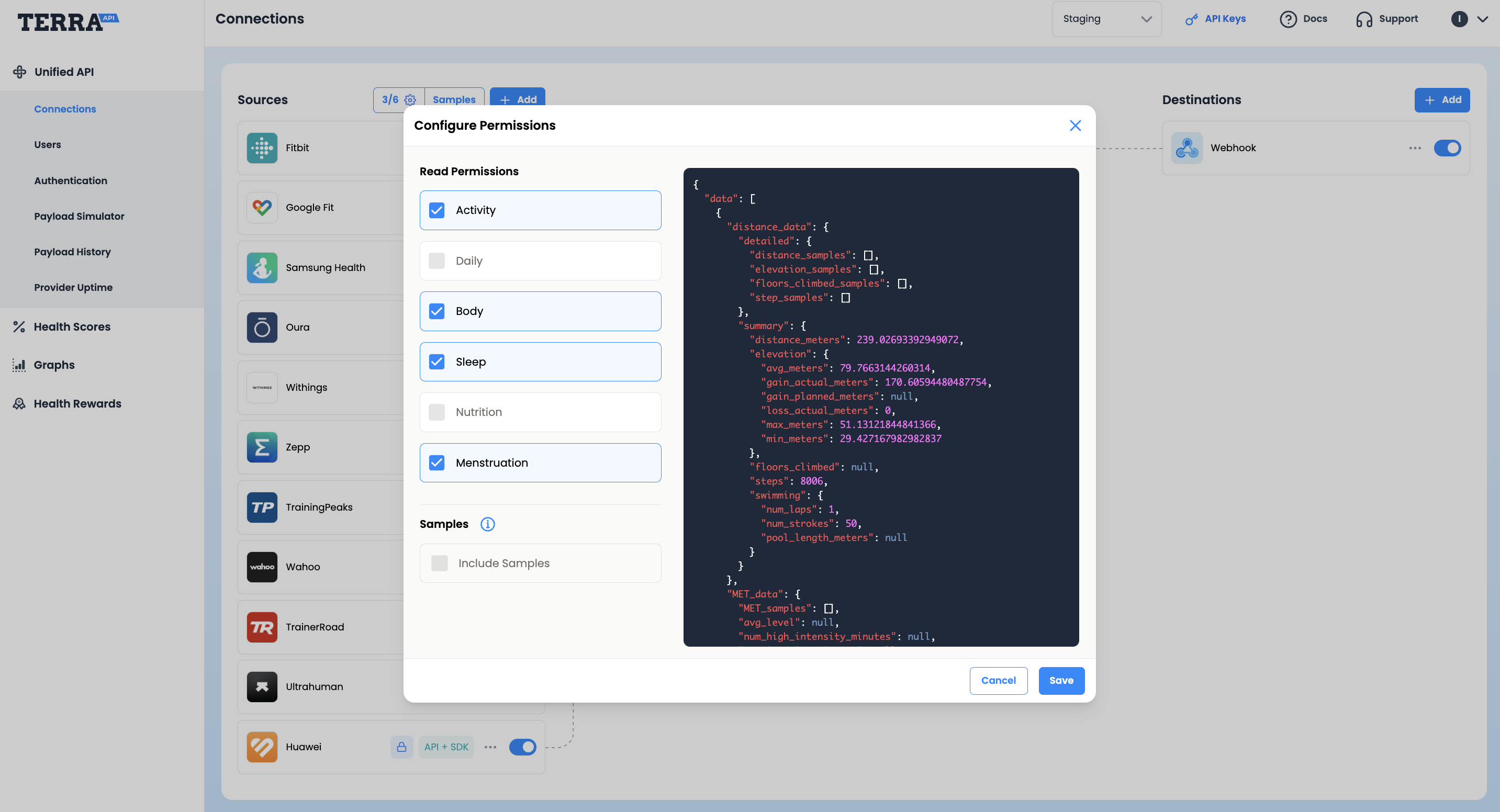
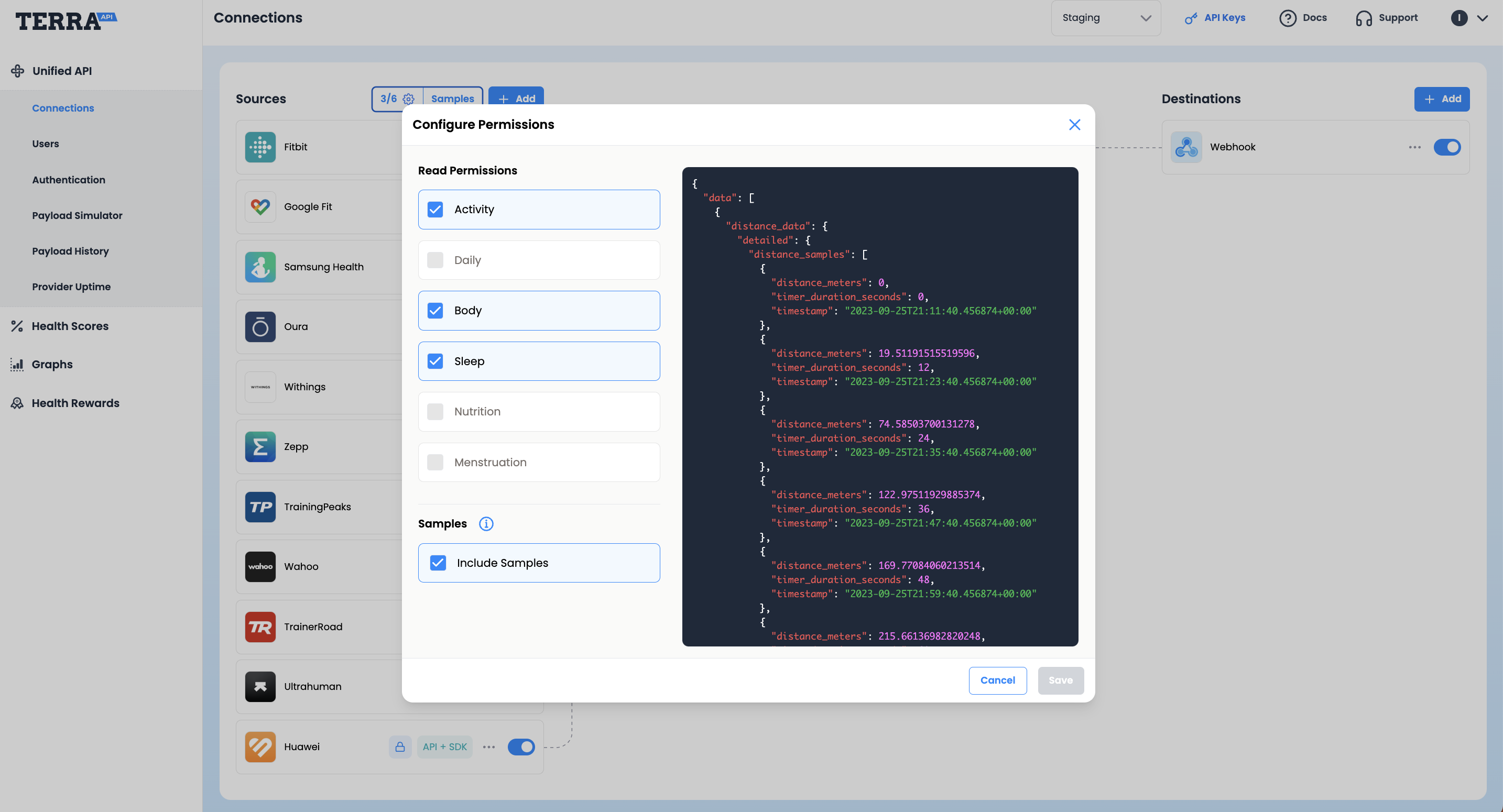
Choose which data types Terra sends to your destination. Open the [data types settings](https://dashboard.tryterra.co/dashboard/connections?open=edit_scopes) in your Terra dashboard and select from:
* Activity
* Daily
* Body
* Sleep
* Nutrition
* Menstruation
This applies to every data source. Turn on **Samples** to receive granular data: a list of readings at specific timestamps.
Without "Samples"
With "Samples"
## Limit permissions for a source
Some data sources let you restrict the scopes requested from your end user. The widget then shows only those permissions.
1. Open **Connections** in your Terra dashboard.
2. Select the data source.
3. Choose **Edit**.
4. Open the **Edit Permissions** tab and choose your scopes.
{% @supademo/embed url="" demoId="clzviqwur09rmo0qpurjz6y3l" %}
## Next steps
* [Destinations](/destinations/setting-up-data-destinations.md): choose where Terra sends data.
* [User authentication](/unified-api/authentication-flow.md): open the widget from your app.
* [Dedicated source API keys](/unified-api/dedicated-data-source-api-keys.md): use your own developer credentials for a source that needs them.
 to activate it.
{% prompt description="Enable data sources from the terminal" icon="terminal" openInAIProviders="true" defaultExpanded="full" %}
```markdown
Enable Garmin, Fitbit, and Oura in my staging environment.
Use the Terra CLI: brew install tryterra/tap/terra, or npm install -g @tryterra/cli, then terra login. Run terra docs ask --question "
 [WHOOP](/unified-api/whoop.md)
*
 [Dexcom](/unified-api/dexcom.md)
*
 [Huawei](/unified-api/dedicated-data-source-api-keys.md#huawei)
*
 [Strava](/unified-api/dedicated-data-source-api-keys.md#strava)
*
 [Virtuagym](/unified-api/dedicated-data-source-api-keys.md#virtuagym)
{% hint style="danger" %}
## Important Note
The Unified API **CANNOT** be used to connect to the following integrations by itself:
 **Apple Health**
 **Samsung Health**
 **Health Connect**
***
These integrations are **mobile-based integrations.** This means that:
* They require a **mobile app** with a **Mobile SDK integration** on the user's device to fetch the data.
* They not offer any sort of web API or web-based data retrieval.
To connect to **Apple Health, Google Health,** **Samsung Health,** please refer to [the Terra **Mobile SDK**](/mobile-sdks/mobile-only-sources.md)
To connect any other **data source (e.g. Oura, Fitbit, Garmin),** please use Terra's **Web** **API** from your backend.
{% endhint %}
Some of the supported data sources are developed on agreements subject to be updated by them. Their APIs can be modified without notifying Terra or 3rd parties, which could cause disruption in the service beyond our control. Those integrations are any of the ones with **"Integration Credentials"** marked as **N/A** in the [Supported Integrations table in the API Reference](https://docs.tryterra.co/reference/unified-api/supported-integrations).
## Choose data types
Choose which data types Terra sends to your destination. Open the [data types settings](https://dashboard.tryterra.co/dashboard/connections?open=edit_scopes) in your Terra dashboard and select from:
* Activity
* Daily
* Body
* Sleep
* Nutrition
* Menstruation
This applies to every data source. Turn on **Samples** to receive granular data: a list of readings at specific timestamps.